
Too Busy to Watch the Market? Connect OKX to DCAUT and Set Up a Trading Bot
Too Busy to Watch the Market? Connect OKX to DCAUT and Set Up a Trading Bot
Published on: 11/27/2026

If you have chosen a large, reliable exchange and have been trading for a while, you probably already have your own trading habits. But that does not mean you want to spend every day watching the market. When you are working, resting, or doing something else, prices keep moving. Would it be easier to set up your trading plan in advance and let a trading bot carry it out?
Or maybe the market has been hard to read lately. You buy because you think the price will rise, and it falls. You sell because you expect a drop, and it rises. Going back and forth can take up a lot of time and throw off your original plan. A trading bot can help by following the entry, averaging, and take-profit conditions you set in advance, reducing the need to watch the market and make decisions on the spot.
If you want to try automated trading while keeping your funds in your own exchange account, give DCAUT a try. Connecting an account requires read and trade permissions, not withdrawal permission. DCAUT supports OKX, Binance, Bybit, Bitget, and Hyperliquid, so you can connect the exchange you use.
In this guide, we will use OKX and DCAUT as an example, covering everything from connecting an API and preparing funds to setting up and running a DCA trading bot. We will use USDT perpetual futures as our example. Your trading funds stay in your own OKX account.
1. How do you connect OKX to DCAUT?
To use a DCAUT trading bot with OKX, first connect your OKX account to DCAUT. Once connected, the trading bot can send trading instructions to your exchange account according to your strategy.
Open the DCAUT Exchange Accounts page, click Add API, and select OKX. You will see the available connection options.
Quick Connect is straightforward. Follow the link to OKX, check the website address and account, and review the permissions before authorizing. Follow the on-screen steps without manually copying each credential.
If you prefer to create and manage your API yourself, choose Manual Connect. First create a set of credentials on OKX, then enter the API Key, Secret Key, and Passphrase in DCAUT. Let’s walk through that option below.
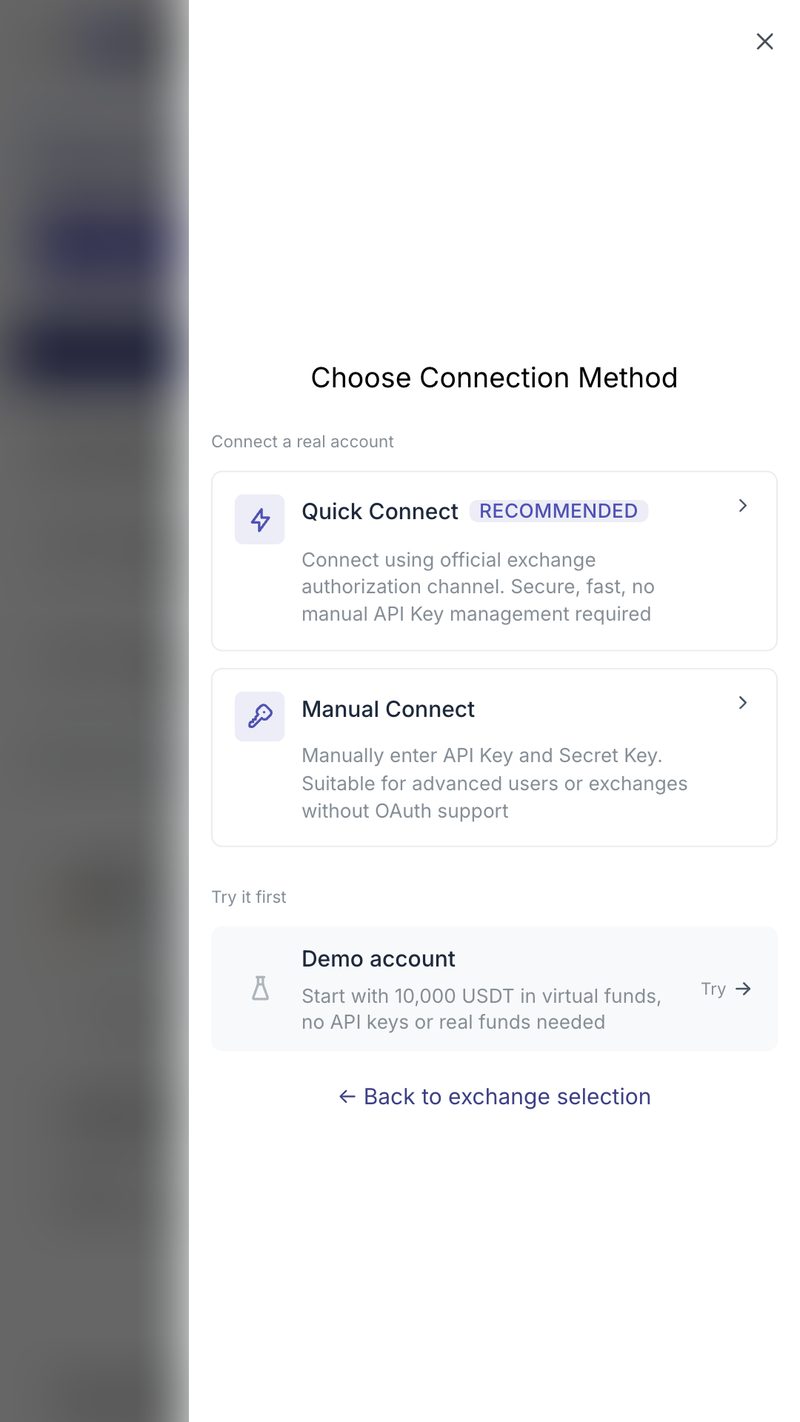
Not ready to connect a real account? You can explore the Demo account option first and get familiar with the interface using virtual funds. A demo is separate from connecting your real OKX account.
Before you start, check that the relevant perpetual futures products are available in your region and for your account. If you already have open positions, do not change your account or position mode casually just to connect.
2. What should you enter for the API Passphrase?
The Passphrase is one of the easiest things to get wrong when connecting manually. It is the password you create for that specific API, not your OKX login password or a verification code. Even if your API Key and Secret Key are correct, the connection may fail if the Passphrase is wrong.
Follow the instructions on DCAUT and complete these steps:
1. Open API management on OKX and create an API for the main account or sub-account you plan to use.
2. Select Bind third-party app as the purpose, choose DCAUT as the app, and enable Read and Trade permissions. Leave withdrawal permission disabled.
3. Set a Passphrase for this API, complete the required OKX security verification, and obtain the API Key and Secret Key.
4. Return to DCAUT, enter an account name and the Key, Secret Key, and Passphrase from the same API, then submit.
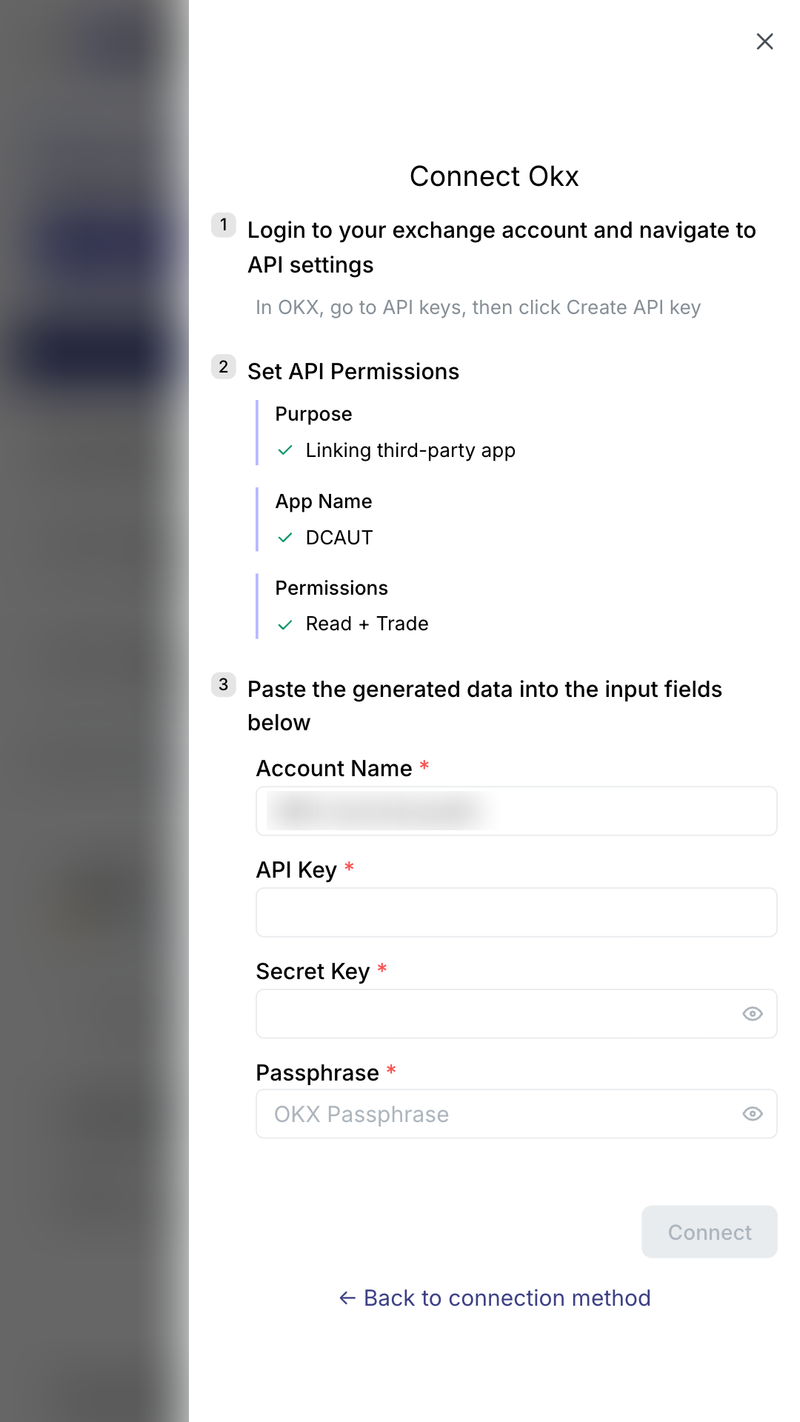
If DCAUT does not appear in the list, check your account’s OKX site and the applicable availability. Do not select a different app at random. Binding a third-party app and manually entering IP addresses for a regular API are different connection methods, so follow the current OKX and DCAUT instructions.
Trade permission can allow orders and cancellations and may include some account settings or internal transfers. Review the full scope before authorizing. Disabling withdrawal permission does not prevent trading losses.
For more details, read How DCAUT Protects Your Funds.
3. The API is connected. Where should your funds be?
Once the connection succeeds, there is one more thing to check before your OKX trading bot can place orders: are your funds in the right place? Having USDT in your OKX account does not necessarily mean it is available in your trading account.
If your USDT is in the funding account, use Assets > Transfer on OKX to move the amount you plan to use into the corresponding trading account. This is an internal OKX transfer; you are not sending the funds to DCAUT.
Check your available balance too. Open positions and orders may already be using part of it. If you connected a sub-account, check that sub-account’s balance rather than only the main account.
The initial capital set in DCAUT is a trading bot configuration; it does not automatically create a separate wallet. If several trading bots share an account, consider their combined potential capital usage.
4. Not sure how to set up a strategy? Start with a preset
Your API is connected and your trading account has funds. So how do you set up a trading bot? If you do not have a trading plan yet, open My Strategies and look at how an official enhanced DCA trading bot preset is configured.
You do not need to change every parameter right away. Start with three things: the first order size, the maximum number of averaging orders, and the size of each one. For example, if the first order uses only 20 USDT but several averaging orders follow, you need to plan for more than that first 20 USDT. Save anything you are editing before loading a preset.
Enhanced DCA uses recent market volatility to set the spacing between averaging orders. For example, if the first order is at 100, the volatility amount used for spacing is 3, and the spacing is set to twice that amount, the next level to watch is 94. The entry conditions configured for that level must also be met before another order is placed.
Check the take-profit and stop-loss rules too. Presets can use different system, position-level, and trend take-profit rules and filters. Understand the actual settings before deciding whether to change them.
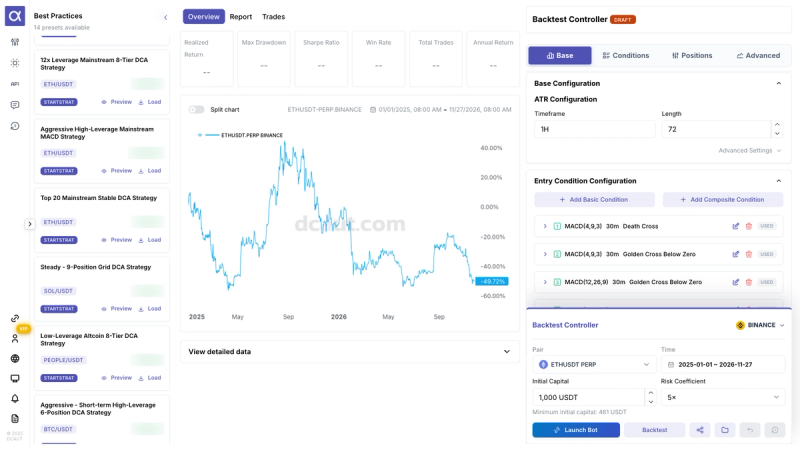
The image shows the configuration interface. The blue line is a reference for the asset price, not a strategy backtest return.
5. How do you backtest and start an OKX trading bot?
Once you understand the strategy, try a backtest before letting the trading bot place orders. It shows what the configuration would have done in historical market conditions.
Check the trading pair, date range, initial capital, risk coefficient, fees, slippage, and funding rate. Alongside returns, look at maximum drawdown, the number of averaging orders, and capital usage. This can help you decide whether the DCA trading bot fits your capital plan.
Also check the source of the backtest data. If the current data comes from another exchange, you can use it to study the rules, but do not call the result OKX live performance. Try several starting dates to see how the strategy behaves in different market periods. Backtest results do not represent future returns.
When the settings fit your plan, save the strategy and open the launch window from the strategy page or Running Bots. Check the strategy, OKX account, USDT perpetual trading pair, and initial capital once more. When everything is correct, you can start the trading bot.
After starting OKX bot trading, you do not need to stare at the screen waiting for the first order. The trading bot follows its configured conditions, and an order depends on whether the market meets them.
Minimum capital can vary by trading pair and strategy; follow the current on-screen requirements. If the trading bot does not place an order immediately, check its status and entry conditions. Waiting can be normal when those conditions have not yet been met. Once an order appears, check its direction, size, and execution on OKX.
6. Frequently asked questions about OKX bot trading
What if I forget my Passphrase?
The Passphrase is set when you create your OKX API and cannot be recovered. If you need a new API, deal with existing orders and positions first, then create a new API through OKX and update the connection. Deleting the old API does not close your positions.
Why can I read my balance but not place orders?
Check trade permission, account and product eligibility, and the available balance in your trading account. If you see an authentication error, check that all three credentials belong to the same API. Do not share your Secret Key or Passphrase when asking for help.
Can several trading bots share one account?
First check your plan limits and current operating restrictions. Initial capital settings do not automatically separate funds when trading bots share an account. Existing positions, other trading bots, and manual trades can all affect available margin.
Does pausing a trading bot close my position?
Not necessarily. Existing positions or orders may remain after a pause. When you plan to exit, handle them according to the stop option you choose, then check your orders and positions on OKX.
Want to use an existing trading bot?
Some traders enjoy researching parameters themselves; others prefer to look at existing trading bots first. Either way, start by understanding when a trading bot opens and adds to positions and how much capital you plan to use.
If you would rather not adjust the parameters yourself, visit the trading bot marketplace to explore listed trading bots, their strategies, and operating history. The two free subscription credits from new-user and promotional registrations apply to eligible project subscriptions; trading capital and exchange fees need to be covered separately.
For more setup details, read the DCAUT beginner’s guide. If you also use Binance, see the Binance connection guide.