
How to Connect Binance to DCAUT and Run a Futures DCA Trading Bot
How to Connect Binance to DCAUT and Run a Futures DCA Trading Bot
Published on: 11/23/2026
Want to run a trading bot on your Binance account but aren't sure where to start with API keys, futures permissions, and strategy settings? The process is easier to follow when you break it down: prepare your Binance account, connect it to DCAUT, choose and backtest a strategy, then decide whether to launch it.
DCAUT is an independent trading bot platform. Once connected, your funds stay in your Binance account, and the trading bot uses an API to execute your strategy. You don't need to transfer your trading funds to DCAUT. Using Binance USDT perpetual futures as an example, this guide walks you through the connection and your first DCA trading bot.
1. Prepare Your Binance Account and Funds
Before running a Binance futures bot with DCAUT, make sure futures products are available to you in your region and on your account. Enable futures trading on Binance and complete any required risk acknowledgments. If you aren't eligible, don't bypass restrictions by changing your location information.
If you're new to Binance, DCAUT's connection instructions say to complete one manual futures trade on your Binance account first, finish the required setup and activation, and then check your API's futures permissions. This involves a real trade, so check the amount and risks before proceeding.
It's best to enable your futures account before creating an API specifically for DCAUT. Binance says an API created before futures account activation cannot enable the corresponding futures permissions. If an older API has permission issues, check when it was created.
Next, check where your funds are. USDT in your spot account doesn't necessarily mean your futures account has available margin. If needed, transfer funds within Binance and check the available balance in your futures account. Existing positions and open orders may also use some of your funds.
DCAUT's Binance connection form currently says it supports Classic Accounts; Unified Accounts are not yet available. The steps below use a Classic Account. Don't switch an existing account mode without understanding the consequences.
2. Create an API and Connect Binance to DCAUT
Open API & Account in DCAUT, select “Add New API,” and choose Binance. You can use Quick Connect or Manual Connect.
With Quick Connect, you'll be redirected to the exchange to authorize the connection. Check the website address and the account you're signed in to, review the authorization scope, and then return to DCAUT to check the connection status.
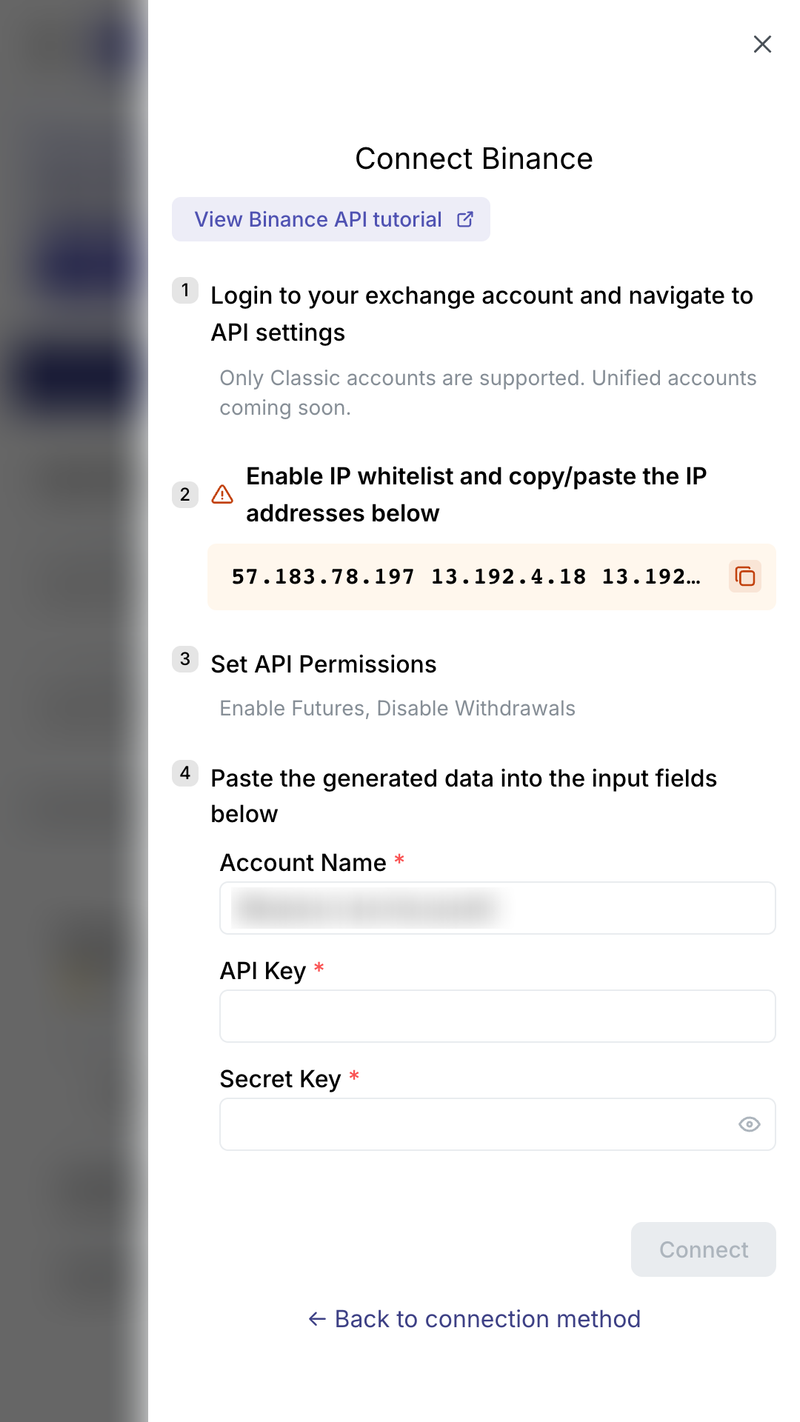
For Manual Connect, follow these steps:
1. In your Binance account menu, open “API Management,” create a system-generated API, and give it a recognizable name, such as DCAUT.
2. Complete the required security verification and save your API Key and Secret Key. Don't share the Secret Key in chats, support tickets, or public screenshots.
3. Keep the necessary read permissions, enable the permissions required for futures trading, and turn off withdrawal permissions.
4. Enable trusted IP restrictions, enter the complete server IP list shown on DCAUT's current connection page, save, and complete verification.
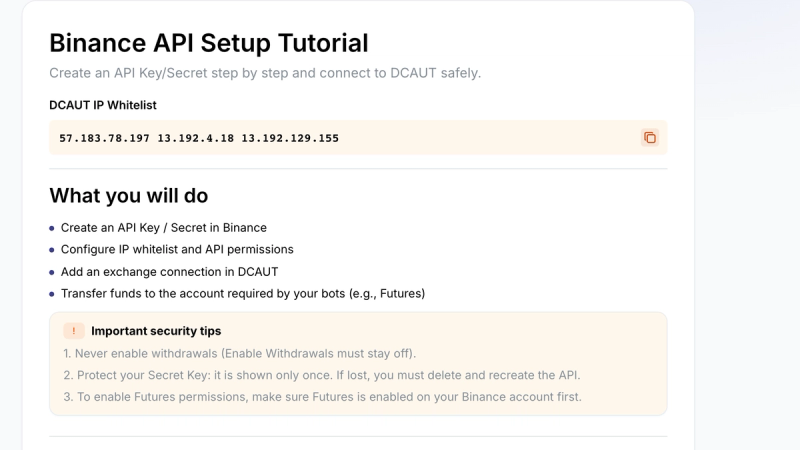
Copy the IP addresses directly from the current connection page rather than an old screenshot. IP restrictions control where requests can come from; API permissions control what those requests can do. Check both.
Return to DCAUT's Manual Connect form, enter an account name, API Key, and Secret Key, then submit the connection. The two keys must come from the same API. Check for extra spaces when you paste them.
Once connected, your funds remain in your Binance account, but a trading bot with trading permission can open and adjust positions according to its strategy. To learn more about protecting your keys and stopping trading, read API and Funds Security.
3. How Do You Choose a DCA Trading Strategy?
Connecting the API is only the first step. The trading bot also needs a strategy telling it when to open a position, add to it, and take profit.
Go to “My Strategies,” open the strategy workspace, and start by loading an official enhanced DCA preset. If you're already editing a configuration, save it first so it isn't replaced when you load the preset.
You don't need to change every setting on your first try. Start with three things: the maximum number of additional entry layers, the order size at each layer, and the exit conditions. Later orders may be larger than the first, so don't judge the funds needed by the first order alone. Consider how much a full trading cycle could use.
Enhanced DCA uses recent market volatility to set the distance between additional entry levels. For example, suppose the first entry price is 100 and the recent volatility measure is 2. If a layer's spacing is set to one times that measure, the next level to watch is 98; at two times, it's 96. Even when price reaches that level, the layer's entry condition must also be met before another order is placed.
Different take-profit methods have different trigger rules. For example, once trend take profit reaches its activation level, it still waits for the configured signal and any selected price-protection conditions. If a risk filter isn't passed, the corresponding additional entry waits. Check your chosen strategy's settings rather than assuming every protection is enabled.
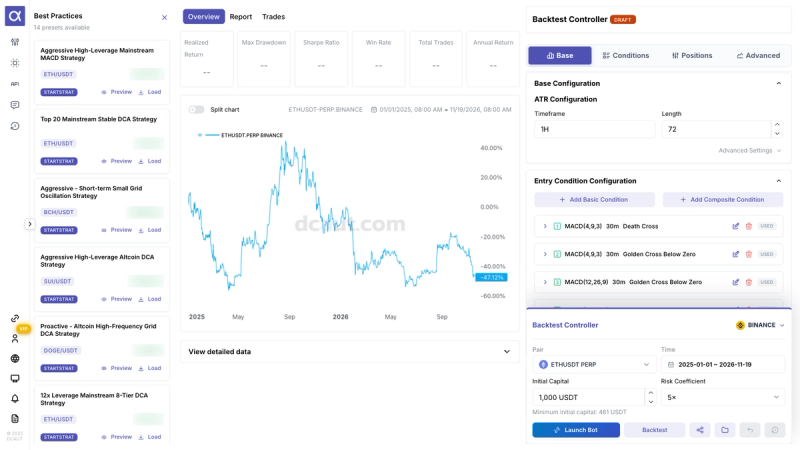
The blue line in the screenshot shows the reference price of the asset, not backtest returns. A preset helps you understand how a strategy works; the amount and settings still need to suit your own circumstances.
4. Backtest Before You Decide to Run It
Choose a trading pair, backtest period, initial funds, and risk coefficient, then run the backtest. Check fee settings such as trading fees, slippage, and funding rates too. Otherwise, the results may not reflect actual costs.
When reviewing the results, don't focus only on profit. Look at the largest decline from a high point, the deepest entry layer reached, and the funds required at peak usage. These can help you decide whether you can accept the potential pressure on your funds during a trade.
The same strategy may encounter different market conditions when started on different dates. Try several starting dates and see how much the results and funding requirements change. After adjusting the funds, check again that each order meets the exchange's minimum requirements.
If the backtested loss or funding requirement is already more than you're comfortable with, adjust the strategy or keep researching. There's no need to rush into launching it. Once you're happy with the configuration, save the strategy.
5. How Do You Launch the Trading Bot?
From the strategy page or the running bots section, open the bot launch screen. Before you start, check the trading bot name, strategy, Binance account, USDT perpetual trading pair, and initial funds.
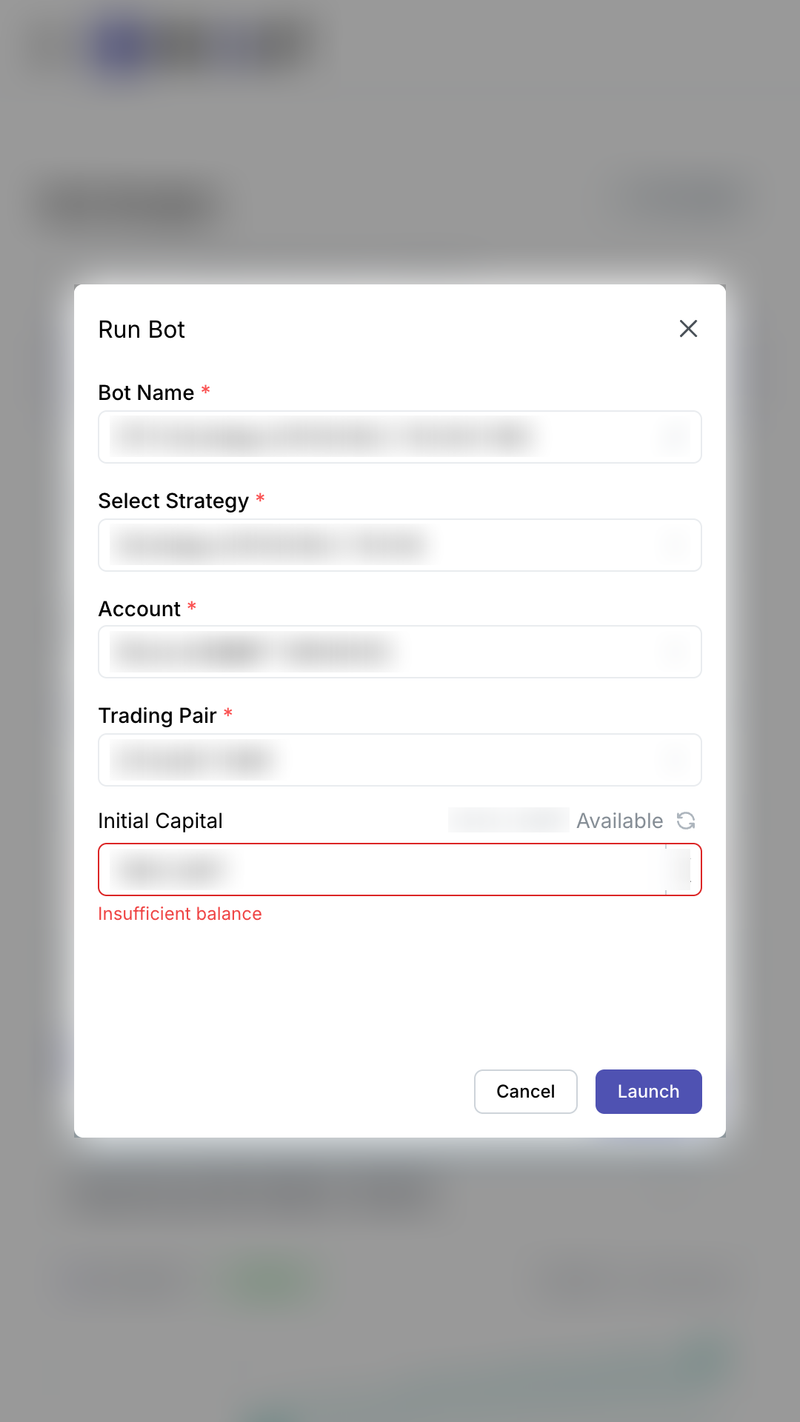
The “Insufficient Balance” message in the screenshot is a pre-launch warning. It shows that the funding requirement had not been met at the time, not that the trading bot was running. Follow the current prompts on your own screen.
The initial funds shown are part of the run configuration. They aren't a transfer to DCAUT, and they don't mean Binance has set aside a separate balance for this trading bot. If the same account has other trading bots or manual positions, consider their margin usage together.
If you want to start with a smaller amount, you still need to meet the minimum requirements for the trading pair and strategy. If the minimum is more than you're willing to commit, you can continue backtesting instead of increasing your funds just to pass the check.
After launch, check that the trading bot is running normally and that there are no errors. No immediate order doesn't necessarily mean the connection failed: the strategy may be waiting for its first entry signal. Once the first order is placed, check the trading pair, direction, and execution on Binance.
Running a custom strategy requires the appropriate account benefits. The two free subscription slots for new users and users registered through a promotion apply to subscriptions to existing offerings; they aren't automatically permission to run any custom strategy. For more on the two ways to use DCAUT, see the trading bot marketplace article and the free and paid plans guide.
6. Connected but Not Trading? Check These First
Key, IP, or permission error: Check that the API is valid and that the Key and Secret match. Then check that the complete IP allowlist is saved and futures permissions are enabled. New Binance users should also check that their futures account is activated and that they have completed a manual futures trade as described in DCAUT's instructions. Don't enable withdrawal permissions or remove IP restrictions to fix the issue.
Insufficient margin: Check the available balance in your futures account and how much is being used by other positions and open orders. Don't rely only on total account assets, and don't increase leverage just to make the funds appear sufficient.
Position direction or mode mismatch: Check whether your Binance account mode meets the strategy's requirements. If you have existing positions or orders, understand the effects before switching modes.
Stopping the trading bot: Pausing execution doesn't automatically close a position, and closing the web page doesn't stop trading. Use the stop option provided on the page, then check your orders and positions on Binance. If you suspect a key has been exposed, revoke the authorization on Binance first and immediately check your account.
7. Frequently Asked Questions About Binance Trading Bots
Is DCAUT a built-in Binance trading bot?
No. DCAUT is an independent trading bot platform that connects to Binance through an API. Trades are executed in your own Binance account.
Can I follow these steps for a spot DCA trading bot?
Not directly. This guide covers USDT perpetual futures, and the account funding and API permissions described here are for futures. Spot and futures accounts, orders, and risks differ, so check each separately.
Why isn't the bot placing orders after the API connects?
First, make sure you've saved the strategy and launched the trading bot, rather than only connecting the API. If it's running normally with no errors, check whether the first-entry conditions have been met. The strategy may simply be waiting for a signal.
How much USDT do I need?
There is no single minimum for every strategy and trading pair. Order sizes at each layer, the exchange's minimum order requirements, and the risk coefficient all affect the funds needed. Check the current on-screen requirements and consider the funding needed for a full cycle.
Can I still lose money if withdrawal permissions are disabled?
Yes. Disabling withdrawal permissions can restrict API withdrawals, but it doesn't eliminate losses from futures trading. Additional entries and leverage can increase pressure on your funds and, in severe cases, lead to liquidation.
If you haven't settled on your trading rules yet, connect your account, explore an official preset, and backtest it first. Once you understand the strategy, decide whether to run it. For step-by-step instructions, see the Binance API connection guide and the beginner's guide.